
DeskSense
AI assistant streamlining content creation and problem-solving tasks.
Key Takeaways
- What it is
- AI assistant streamlining content creation and problem-solving tasks.
- Pricing
- $4.99 per month · $7.99 per month · $19.99 per month
- Best for
- AI-Powered Content Creation
- Multi-Platform Accessibility
- Customizable Prompts
- Rating
- 4.5/5
What is DeskSense?
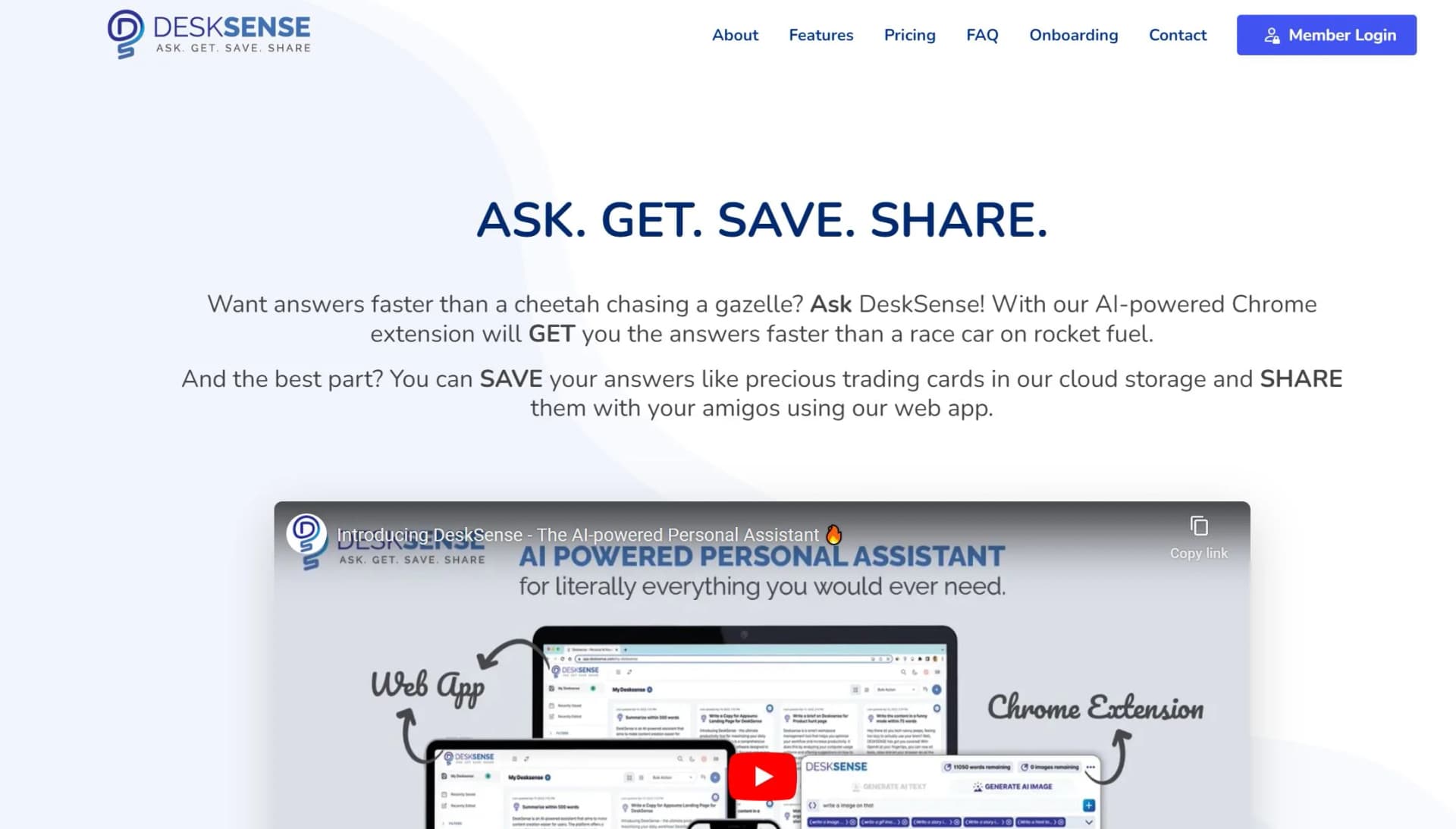
DeskSense is an innovative AI-powered assistant designed to streamline content creation and problem-solving across various platforms. It's an all-encompassing digital companion that assists users in generating emails, writing code, creating content summaries, and more. With its integration of OpenAI technologies, DeskSense offers a seamless experience through its Chrome extension, web app, and mobile app, making it an ideal tool for influencers, marketers, and social media managers looking to enhance productivity and creativity.
Please note that pricing information may not be up to date. For the most accurate and current pricing details, refer to the official DeskSense website.
DeskSense stands out with its ability to function as a comprehensive AI assistant across multiple platforms. Its unique blend of customizable prompts and advanced AI models, such as GPT-4, allows users to tailor their experience, making it a game-changer for content creation and problem-solving. The integration of features like AI Chatroom and AI Writer further distinguishes DeskSense as an essential tool for professionals seeking efficiency and creativity.
DeskSense offers a robust suite of features that make it an invaluable tool for anyone involved in content creation, marketing, or digital communication. Its seamless integration across platforms, coupled with its advanced AI capabilities, ensures users can efficiently tackle a wide range of tasks. While there are minor areas for improvement, such as word quotas and support responsiveness, DeskSense remains a top choice for professionals seeking a reliable and versatile AI assistant.
Who is Using DeskSense?
Influencers
Leveraging DeskSense for creating engaging social media content and managing online presence.
Marketers
Utilizing the tool for crafting persuasive marketing materials and campaign content.
Social Media Managers
Employing DeskSense to streamline post creation and enhance audience engagement.
Content Creators
Using DeskSense's AI capabilities to generate high-quality, creative content efficiently.
Uncommon Use Cases
Adopted by educators for teaching digital content strategies; utilized by small business owners for automating routine communications.
Key Features
Rating Breakdown
Pricing Plans
Plan 1
$4.99 per month
- 60,000 words and 25 AI-generated images
- Unlimited storage and 24/7 email support
Plan 2
$7.99 per month
- 120,000 words and 50 AI-generated images
- Additional features like color filters for saved cards
Plan 3
$19.99 per month
- 200,000 words and 80 AI-generated images
- Including video support and enhanced customer service
Which DeskSense plan should you pick?
Start with Free to test the browser extension and web app; upgrade to Basic, Startup, or Pro when monthly word and image quotas are insufficient.
Free
Good for casual users who need 5,000 words per month, chatbot access, unlimited saves, and the extension and web app.
Basic
Good for regular users who need 60,000 words, 25 images per month, and email support.
Startup
Good for heavier users who need 120,000 words, 50 images per month, and email plus video support.
Pro
Good for high-volume users who need 200,000 words, 80 images per month, and additional support.
DeskSense Use Cases
Web research and summarization
Select text on a webpage or summarize an entire website, article, or YouTube video.
Outcome: Faster access to relevant answers and condensed information.
Email and business writing
Provide a message or context and generate polished email communication.
Outcome: Clearer, more professional written communication.
Marketing content creation
Generate blog topics, keywords, video scripts, articles, and social media posts.
Outcome: More ideas and ready-to-edit marketing content.
Coding assistance
Describe a programming problem and request tailored code snippets or algorithms.
Outcome: Practical coding guidance and generated solutions.
File summarization
Upload supported local files such as PDF, TXT, or DOC documents and summarize them.
Outcome: Quicker review of document contents.
Workflow Ideas with DeskSense
Research and save a webpage summary
- 1Open a webpage and select relevant text.
- 2Press Ctrl+I or Cmd+I to activate DeskSense.
- 3Generate, summarize, and save the response with tags or favorites.
Create and organize marketing content
- 1Enter a prompt and supporting context.
- 2Generate a blog, social post, script, or keyword list.
- 3Edit the result and save it as a content card with notes or tags.
Summarize a local document
- 1Upload a supported PDF, TXT, or DOC file.
- 2Run the one-click file summarizer.
- 3Save or copy the resulting summary for later use.
How DeskSense fits into your stack
Browser
DeskSense primarily sits beside web browsing through its Chrome and Edge extension. Users can select webpage text, invoke DeskSense with a shortcut, summarize content, and generate responses.
Docs and writing
The web app and extension support email writing, articles, blog posts, social posts, summaries, formulas, and other prompted content. Generated responses can be edited, saved, tagged, favorited, and copied.
Knowledge and files
DeskSense provides cloud storage for saved AI responses and supports uploaded-file summarization, including PDF, TXT, and DOC files. Users can organize saved content with tags, notes, favorites, filters, and search.
Pros
- +User-Friendly Interface: DeskSense offers an intuitive design that simplifies user interaction, making it easy for both novices and experienced users to navigate.
- +Robust Integration: Seamlessly integrates with popular browsers and platforms, enhancing its utility and accessibility.
- +Versatile Functionality: Supports a wide range of tasks from content creation to problem-solving, making it a versatile tool for various professional needs.
- +Efficient AI Capabilities: Provides fast and accurate responses, leveraging the latest advancements in AI technology.
Cons
- −Word Quota Limitations: Some users may find the monthly word limits restrictive, especially in lower-tier plans.
- −Customer Support Delays: A few users have reported slower response times from customer support, which could be improved.
Limitations & when to consider alternatives
Known limitations
- 750-word maximum per query. DeskSense limits each query response to approximately 750 English words or 3,500 characters.
- Monthly word quotas. The Free plan includes 5,000 words per month, while paid plans have larger monthly limits.
- Regenerations consume quota. Each regenerated response counts as a new query against the plan allowance.
- Chrome and Edge extension availability. The official FAQ states that the extension is currently available only for Google Chrome and Edge.
- Draft history retention. The product description says DeskSense maintains 30 days of draft history.
Look elsewhere when
- You need a native Windows, Mac, or Linux desktop application.
- You need documented API access with keys and endpoints.
- Your organization needs SSO or multi-user workspace administration.
- You need named third-party integrations such as Gmail, Outlook, or Google Sheets.
How to Use DeskSense
- 1
Install the extension
Install DeskSense from the Chrome Web Store or use the Edge installation path described in the onboarding guide.
- 2
Create or access an account
Sign up for a free account or log in so responses can be generated and saved.
- 3
Activate DeskSense on a webpage
Press Ctrl+I on Windows or Cmd+I on Mac to open DeskSense on the current website.
- 4
Provide a prompt and context
Ask a question or describe the task, adding selected webpage text or other context when useful.
- 5
Generate or summarize content
Use the chatbot, writer, summarizer, code generator, image analyzer, or file summarizer according to the task.
- 6
Save and organize the result
Save useful responses as cards, then edit them or add tags, notes, and favorites for later retrieval.
Who is DeskSense For?
Busy professionals
Use the assistant for faster research, writing, email communication, and content creation.
Students
Use DeskSense to summarize web content, understand topics, and generate written or coding assistance.
Researchers and online readers
Analyze selected website text, summarize pages, and save useful answers for later.
Content creators and marketers
Generate blog ideas, video scripts, keywords, social posts, and other marketing content.
Developers and technical users
Request code snippets, algorithms, and complex Excel formulas through prompts.
Frequently Asked Questions
How do I install DeskSense in my browser?
DeskSense is currently available as an extension for Google Chrome and Edge. Install it from the browser extension store, then pin the extension.
What is DeskSense App?
DeskSense App is cloud-based storage for saving results from the DeskSense extension, including favorites and tags.
What are prompt and context?
A prompt is the initial instruction, while context provides additional information to help DeskSense understand the task.
Do I need to log in to use DeskSense?
Yes. A free account provides a usage quota and a web app for saving OpenAI responses.
How do I save search results?
After receiving a response from the extension, click the save icon. You can also add tags and favorites.
How do I get DeskSense Pro?
Click the DeskSense Pro button in the extension and continue to the plan and billing page.
Community reviews
1 review from people who use DeskSense.
Sign in to leave a review for DeskSense.
Rishabh Dwivedi
DeskSense Alternatives
Looking for alternatives to DeskSense? Here are similar tools in the same category:
Learn to Master DeskSense
With Skill Leap courses
Get in-depth training on DeskSense and 50+ other AI tools with our expert-led video courses.
Start 7-Day Free Trial